How to Recreate the Resources of a Bloomberg Terminal for Free
Financial Modeling and Analysis Tools
|
Market Research Tools
|
Macro Data
|
VC/Startup Databases
|
Stock Research Reports
|
Financial Modeling and Analysis Tools
|
Market Research Tools
|
Macro Data
|
VC/Startup Databases
|
Stock Research Reports
|
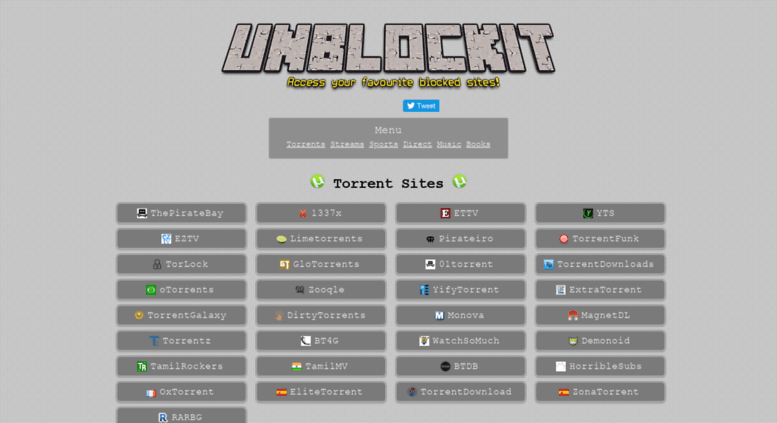
If this website becomes unavailable, then Google/Swisscows the keyword “UnblockIt”. You will find the UnblockIt website generally through GitHub.
https://www.chromium.org/chromium-os/chromium-os-faq
~~~~~~~~~~~~~~~~~~~~~~~~~~~~~~~~~~~~~~~~~~~~~~~~
I have switched OS, and have installed Neverware’s CloudReady OS (which is a Chromium OS). As a result, I can not access Notepad — which is a Windows app. So, I am creating this Google Docs document, to note down things that come up to my mind. I am laying this out on a table format.
When I shall take up and read this doc again, I will probably be on a Windows or Mackintosh machine. Hence, I have created this heads-up text to remind me of all that and to make sense of this doc.
~~~~~~~~~~~~~~~~~~~~~~~~~~~~~~~~~~~~~~~~~~~~~~~~
https://maptheinternet.blogspot.com/
|
How To Install Chrome OS Full Explain | How To Make Live USB For Chrome OS In 2021 | TechPreface
|
Sibollrizikie@gmail.com CloudReady OS base account settings: ~~~~~~~~~~~~~~~~~~~~~~~~~~~~~~~~~~~~ Chromium Browser Bookmarks:— a) Amazon.com b) Internet Archive c) Twitter https://twitter.com/home?lang=en d) Facebook e) Instagram f) Wikipedia g) Online Image Editor https://www.online-image-editor.com/ f) Online Notepad https://www.rapidtables.com/tools/notepad.html g) HubPages https://discover.hubpages.com/ ~~~~~~~~~~~~~~~~~~~~~~~~~~~~~~~~~~~~ Chromium Browser Pinned Tabs:— FIRST ROW: YouTube, Swisscows, Brave Search, Infospace, Chrome Web Store SECOND ROW: Bing, DuckDuckGo, Google Docs, Mozilla Pocket, YouTube Music ~~~~~~~~~~~~~~~~~~~~~~~~~~~~~~~~~~~~ Chromium Browser Homepage:— Bing (“Show news and interests” TURNED OFF) |
Zorin is a popular distro based on Ubuntu and highly recommended by Linux users. Once you get to the Desktop, it has a really nice Windows look and feels with the Start Menu and Taskbar. When you click on the Start button, you access a handful of apps in different categories. You are also used to folders in Windows, including Documents, Downloads, Music, Pictures, and Videos. There are also a good number of included utilities. Make sure you look for Zorin Appearance to make the Desktop as comfortable as possible. Zorin offers a paid-for version loaded with many apps, but the Core install should work for most. Conclusion - Zorin OS is Ubuntu-based, unlike most of the Distros we selected (except Solus). If you're not sure where to start or feeling overwhelmed already, then try Zorin OS. Windows users should adjust quickly. |
Solus is built from scratch and is geared towards Windows users. We booted into the Live distro to an attractive Desktop using the Budgie Desktop, which brings us to one possible confusion, yet advantage, for Windows users. There are 4 Desktops to choose from depending on your needs. I'm not too fond of numerous Linux choices, but choosing the Desktop you want from the download page allows you to grow with Solus or use it on older hardware. Linux Mint and Solus are similar. However, there are a few areas that Linux Mint does better, including the Applications shortcut on the Desktop. Plenty of software is installed in a wide range of categories. You can manage your apps in the Software Center, including downloading more apps. Once again, I found it wasn't quite as user-friendly as Linux Mint. Conclusion - Windows users will feel right at home with Solus. We love that you can download different Desktops, so you can move to a more sophisticated Desktop and begin to explore Linux further when you're feeling confident. |
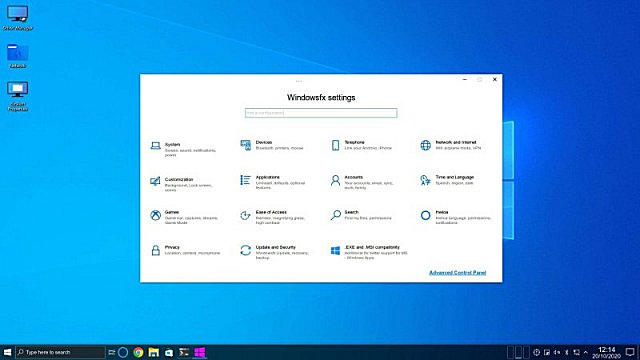
Linuxfx is based on Ubuntu and designed for Windows 7 users who can't upgrade to Windows 10. They offer two builds, Cinnamon and Plasma. Cinnamon is best for 2GB computers, while Plasma is best for 4GB or more. We used the Plasma desktop for our testing. Linuxfx comes as close to Windows as anything we tried. Even the "Control Panel" and "Device Manager" mimics Windows. Other apps you might need, including Microsoft Teams, OneDrive, and Skype, are supported. Another feature for anyone new to installing in Linux is the ability to double-click EXE and MSI files. Conclusion - Most Linux distros that claim to look and feel like Windows fall short compared to Linuxfx. Most of them pull it off with a hybrid Mac-Windows look, but Linuxfx really feels like Windows. |
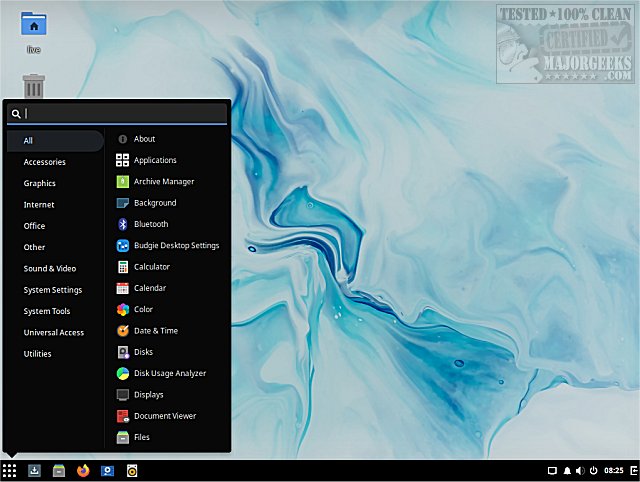
Linux Mint is Debian or Ubuntu-based and has the advantage of being one of the distros that experienced Linux users will recommend to new users. You can boot it as a live operating system, and a shortcut is provided if you decide to install it later. When you see it for the first time, prepare to be impressed. It looks like someone customized the Windows 10 Start Menu with a dark theme. There is enough software already included, so you shouldn't need to do anything. There are software categories for Accessories, Graphics, Office, Internet, Sound & Video, and more. Once you feel comfortable with Linux Mint, you can use the Software Manager to download any open-source software you like. It's sort of like using the Windows Store - except it doesn't suck. Conclusion - Windows users will have no problem using Linux Mint. We found it to be easy to use and uncluttered. |
Manjaro was a no-brainer. They claim to be a perfect fit for Windows users, and the Linux community often recommends it. It also features a Welcome screen like Linux Lite with Documentation, Support, Project, and Installer. A welcome Search button is available at the top-center of your Desktop. The Taskbar is located at the top, while we might know as Start is on the left side. There is a Layout manager that allows you to apply a more macOS look. Once again, I didn't notice any way to browse for and download new software. Conclusion - Many in the Linux community will recommend Manjaro for Windows users, and we found it easy to use. Manjaro has the advantage of a welcoming, large community if you need help. |
Diamond Linux-TT also promises to be comfortable for Windows users. It gave me more of a Windows 7 vibe in its current form, and that's not a bad thing. Like many other distros, you can boot it as a live operating system, and a shortcut is provided if you decide to install it later. It has the "Start" button or, as it's called, the Application Launcher. The Application Launcher is laid out slightly differently than Windows, but possibly in a good way. Diamond Linux-TT also features Widget, something many Windows users miss. There is more than enough software to get you started in any category. Conclusion - Windows users, especially Windows 7 users, will have no problems adjusting to Diamond Linux-TT. Those who remember Gadgets are going to love having that option again. |
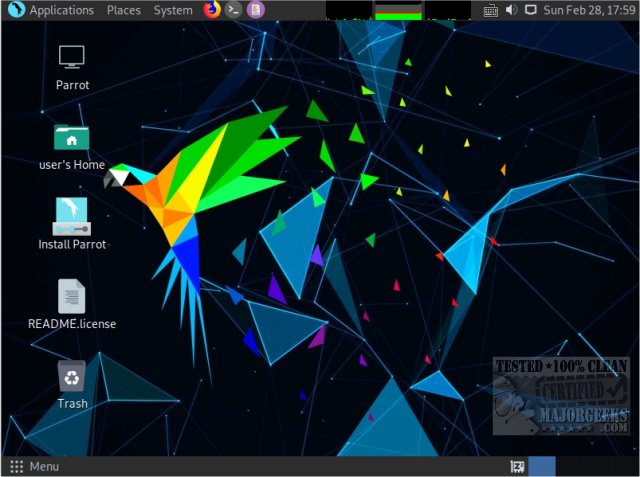
Parrot OS does not claim to be perfect for Windows users, but it does claim it's good for new users. There's a focus on security and privacy, although different distros allow you to decide what you want. We tested Parrot Home MATE with no security tools. There is a Start (Menu) where you expect it and a Taskbar at the top and bottom, which I liked. There are plenty of privacy-related apps to use, and the OS seems snappy. There are numerous preferences and settings you can easily change. Conclusion - Depending on the Distro you select, Parrot OS has many privacy and security apps that other Linux distros lack. It also includes most of the office, multimedia, and graphics apps you've come to expect in most Distros. |
PCLinuxOS has a PC in the name, so it must be perfect for Windows users, right? The problem is that you need to pick from one of three Desktops, followed by one of six builds bringing your guesswork to choosing from 18 different distributions. This is literally the main reason windows people get confused by Linux. Too many choices. While the choices are negative for your first time, don't let that stop you. We started with KDE, if you were wondering. PCLinuxOS is gorgeous to look at with a familiar Windows interface with a touch of macOS. Where it stands out for me is there are a lot more items in the Taskbar. Click on Start (Application Launcher), and again, there is plenty to look at. There's plenty of included software and thousands more you can download. Conclusion - PCLinuxOS is beautiful to look at and easy to use. The extra Taskbar items make using it easier, and the software manager is easy to use while different from the others tested. |
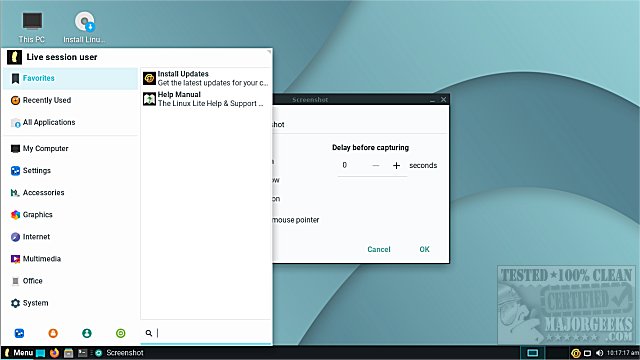
Linux Lite has the two words we're looking for, and they promise a smooth transition for Windows users. Right out of the gate, Linux Lite offers something we hadn't seen yet - A welcome screen. There are three categories to browse - Start Here, Support, and Contribute. It also offers an install option. What you know as Start is called Menu, and it's very similar to Windows Start Menu. You can find many recognizable categories, including My Computer, Settings, Accessories, Graphics, Internet, Multimedia, System, Office, and more. The Settings page is better than most that I've seen so far. There are Desktop shortcuts to a few things and the ability to use 2 workspaces simultaneously. It would appear driver support is a big feature as well. I couldn't find an interface to download from, something I got used to with other Distros. Conclusion - Windows users will feel right at home here, but there should be a download manager to download apps that are easier to find, assuming there is one at all. The settings page really simplifies customization. |
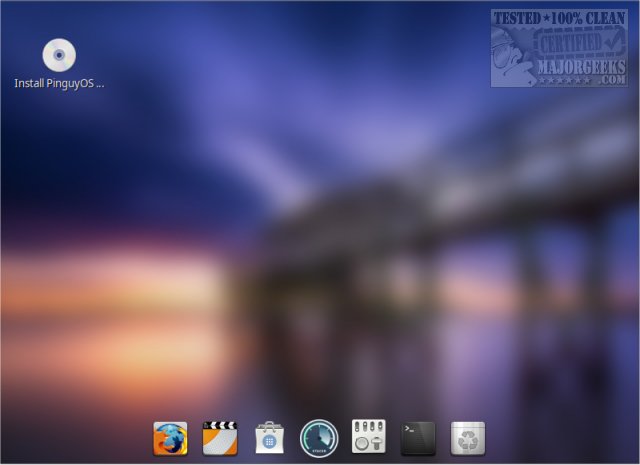
PinguyOS promises to be comfortable for Windows and Mac (wow, someone finally said it) users. You can download the Mini or Full version. We opted for full, assuming that there was a lot of included software at 3.6GB. We liked Pinguy right away because it features both a Mac dock and a "Start Menu." We initially noticed that PinguyOS booted and seemed slower than the other Distros we tested. It was also the only distro that froze in our virtual machine. We noticed the background changes regularly, and the weather is on the Taskbar. Maybe they're doing too much? Because of the hybrid Windows-Mac appearance, there are plenty of ways to find everything you need. The Tweaks section can get everything looking how you want in minutes. Conclusion - We love that the Mac and Windows interface are combined, but you might need a powerful computer to run this Distro. If you want to try it, be sure to download the Mini first. Hopefully, that runs faster. |
Elementary promised to be a fast, privacy-respecting distro that Windows users should be comfortable with. When you boot from the Elementary ISO, you can choose to install or try it Live. When you see it for the first time, expected to be thrown a curveball - it looks like the macOS. Don't get me wrong, it's a really nice-looking Desktop, but Windows users are going to need to adjust. Everything is laid out well, and an application link is provided in the top-left corner and a Taskbar in the top-right corner. There isn't a lot of third-party software installed but plenty of utilities. The AppCenter makes downloading and installing new apps easy. If you prefer to keep your Linux light, then you can find all the open-source software you want without all the pre-installed software you don't. Conclusion - While Elementary claims to be a Windows replacement, it looks like a macOS. Most Windows users don't like Macintosh, but we found it easy to adjust if you're looking for something easy to use but different. |
Pop!_OS is designed for STEM (Science, technology, engineering, and mathematics) professionals; however, Pop!_OS is one of the names that does come up as a possible Windows replacement. Pop!_OS wanted to install on the first try, so we had to find the word Demo to use it Live. Once booted up, Windows users might initially be confused, but getting started isn't that hard. Pop!_OS uses "Activities" in the top-left corner to access your apps instead of "Applications." A small Taskbar opens to the left to access a web browser, files, Terminal, and Pop!_Store where you can download and install new apps. There isn't a lot of third-party software installed, but the usual utilities and LibreOffice is included. The Pop!_Store does offer Pop!_Picks and some unique software categories (Math, Science & Engineering). Conclusion - Pop!_OS isn't for Linux newbies coming from Windows unless you're a STEM professional, in which case, you're probably smarter than me, and this is a perfect distro for you. However, after only 15 minutes in, it was rapidly growing on me. |
https://docs.google.com/document/d/e/2PACX-1vTvOM7l2SCdnJS0alAnntmZs1XvfQC2cAVsmwcwuKXe56EFfuaarBYEa8IU9CQWXn2KWhhuh1USxpEC/pub https://docs...